
Marketing Team
The journey of upskilling is one of dedication and hard work. You’ve attended the courses, honed your abilities, and passed the assessments!
Now, it’s time to claim the official recognition of your achievements: your Workforce Skills Qualifications (WSQ) certificate.
More Than a PDF: The Power of Secure OpenCerts
For years, a certificate was a piece of paper—something to be framed, put on file, or scanned into a static digital image. However, these traditional formats are easily lost, awkward to share, and can be vulnerable to forgery. In today’s digital economy, the need for a more secure, verifiable, and portable standard is critical.
Recognising this, SkillsFuture Singapore (SSG) has spearheaded the evolution from paper to a secure digital ecosystem.
So, what makes an OpenCert different from a simple PDF file?
An OpenCert is a secure, smart digital document. It is more than just an image of your certificate; it is a file that contains unique, encrypted data that is cryptographically secured. This is achieved using blockchain technology, which creates a tamper-proof and independently verifiable record of your achievement.
In simple terms, every OpenCert is issued with a unique digital footprint that is stored on a decentralised and immutable ledger. This means its authenticity can be checked instantly by anyone—an employer, a university, or a professional body—without needing to contact the training academy that issues the certification.

Your Digital Key: Accessing Your Certificates
The gateway to your WSQ certificates is the MySkillsFuture portal, a one-stop platform for all your skills development and career planning needs. Here’s how you can access your hard-earned qualifications:
For Learners with SingPass:
- Log in with SingPass: The most straightforward way to access your certificates is by logging into the MySkillsFuture portal using your SingPass.
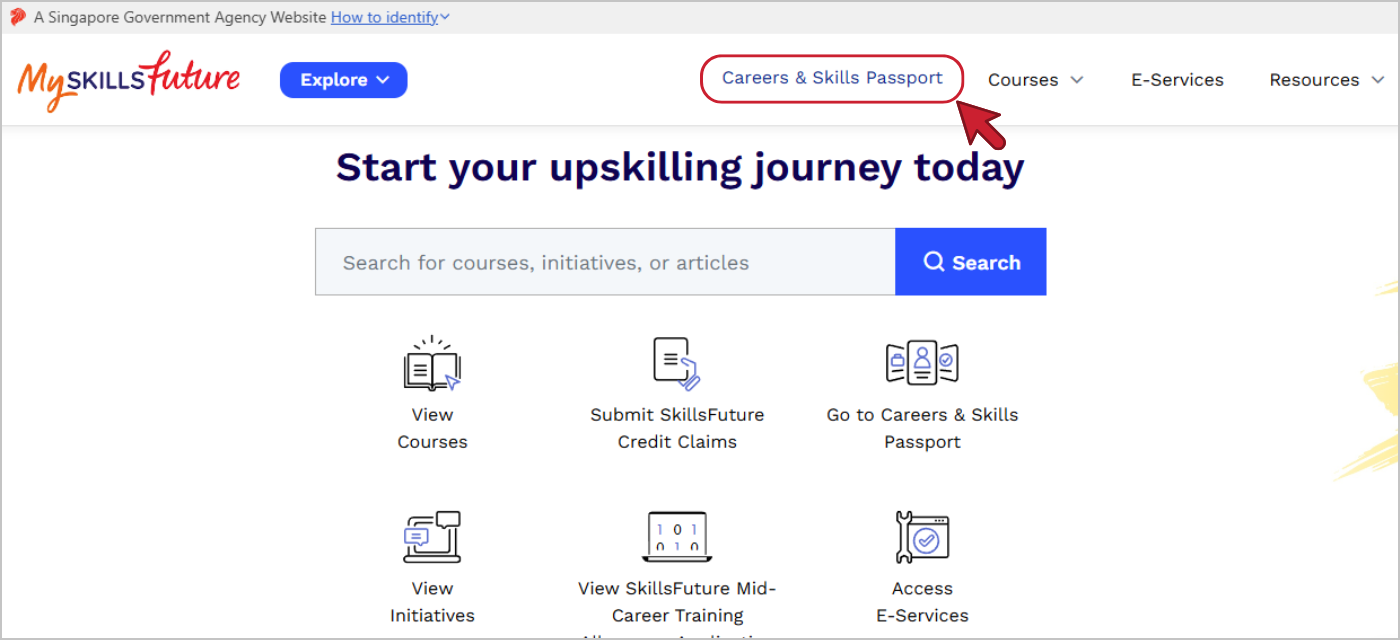
- Navigate to Careers & Skills Passport: Once logged in, you’ll find your “Careers & Skills Passport.” This is your personal, digital portfolio where all your qualifications and certifications are stored.
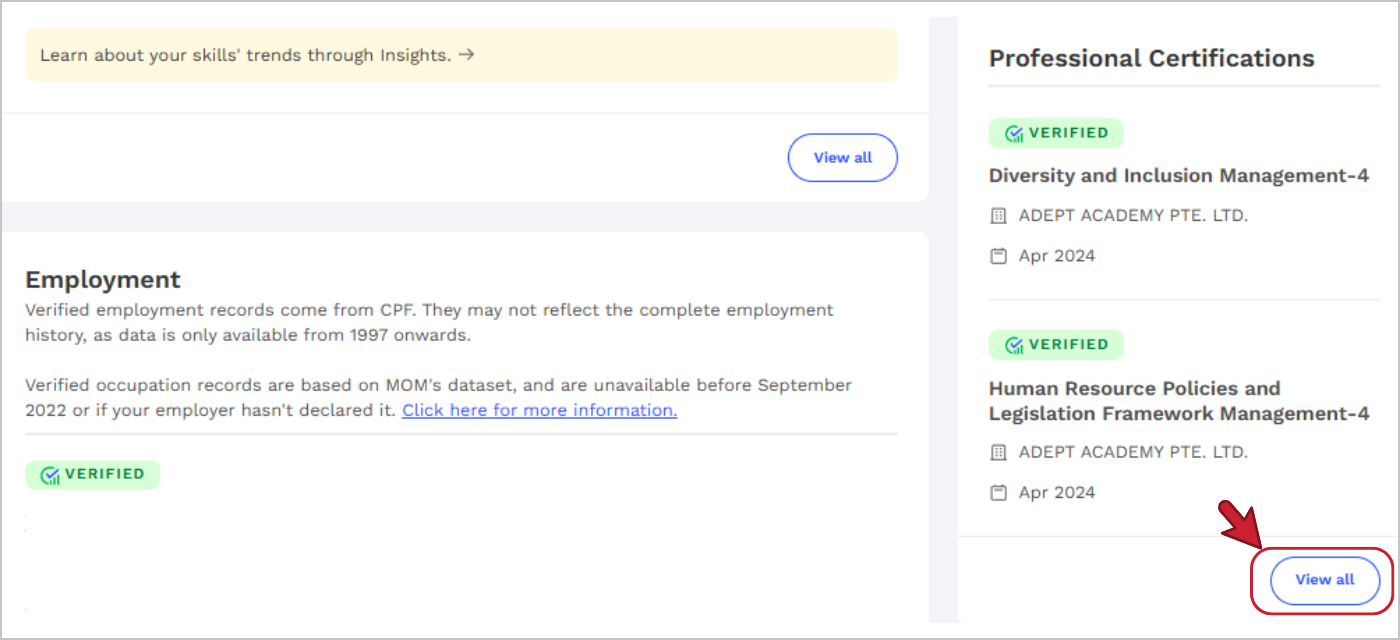
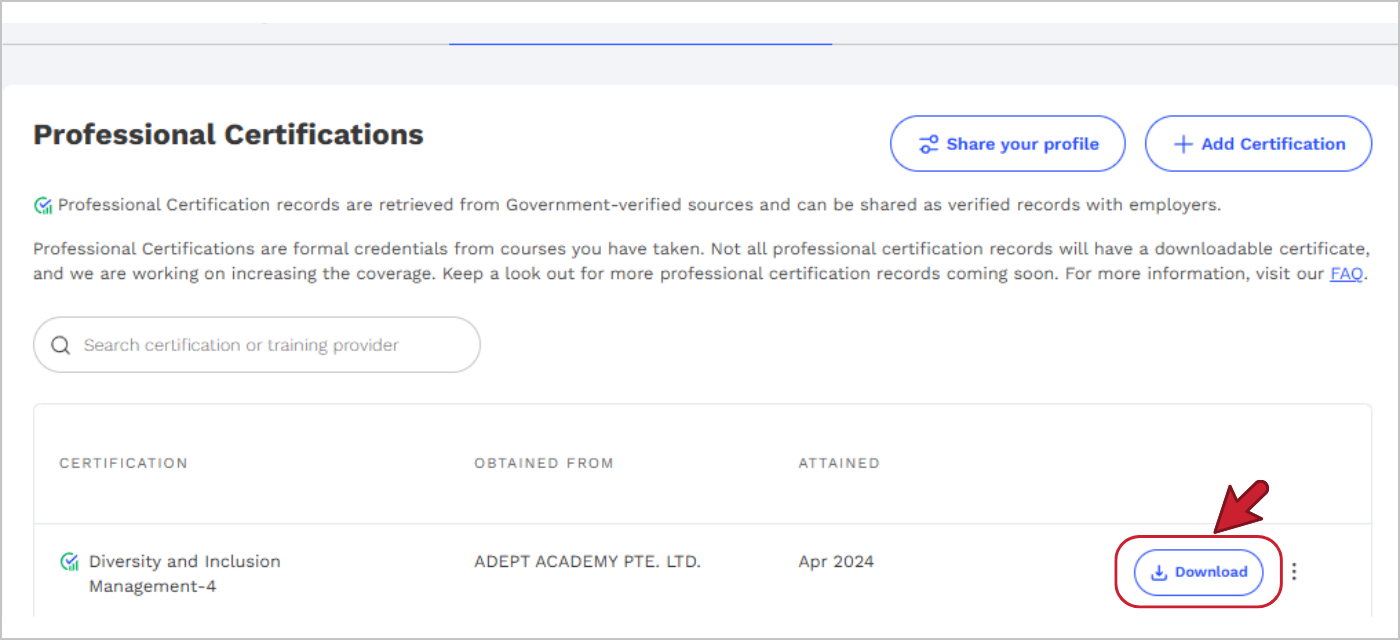
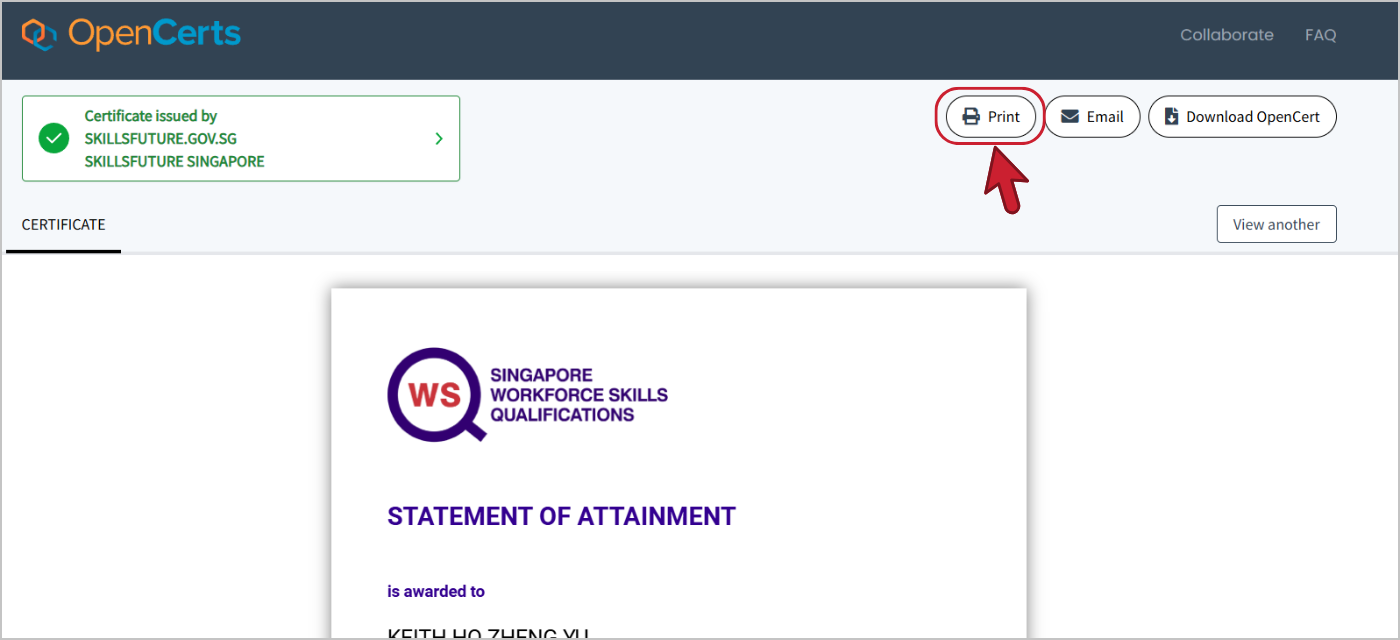
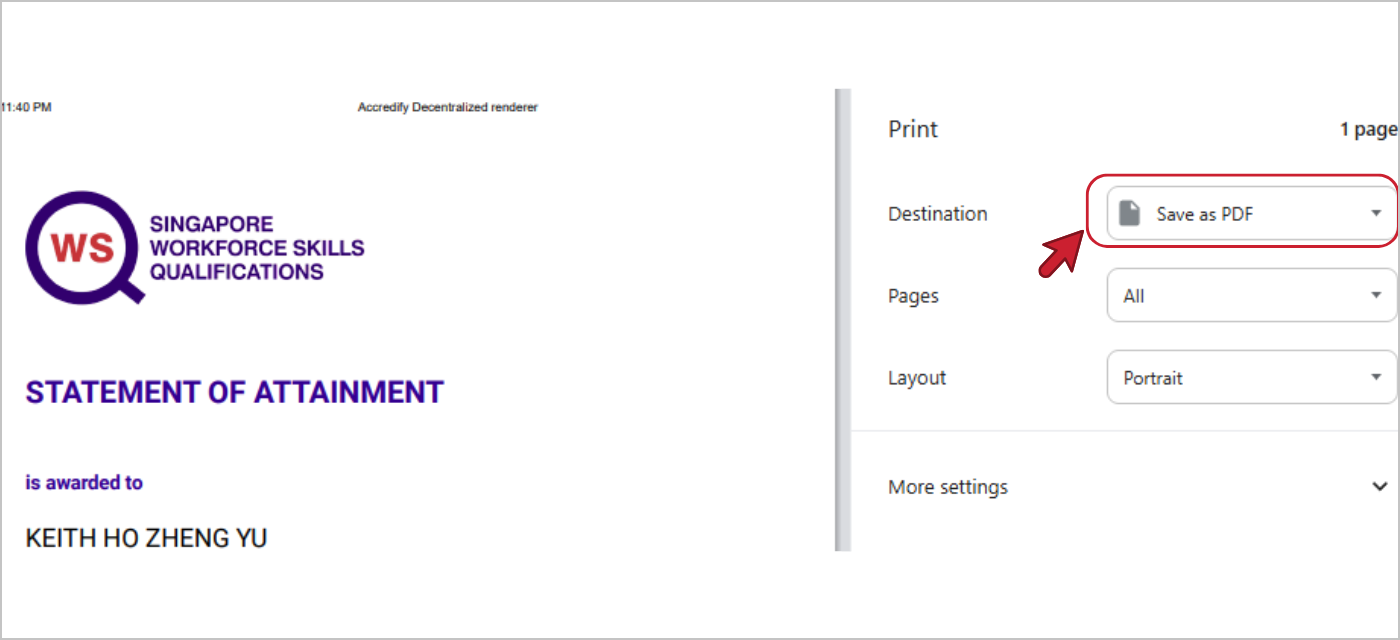
- Download Your PDF Copy Using OpenCerts: Within your Skills Passport, you’ll see a list of your achievements. You can view and download your WSQ e-Certificates, and you will be directed to OpenCerts where you can save them in PDF.
Step 1:
Step 2:
Step 3:
Step 4:
Step 5:
A Guide to Getting a SingPass
Singpass is more than just a password; it is your trusted national digital identity for living and working in Singapore.
It’s the secure key that unlocks hundreds of essential government and private sector services, from checking your CPF and filing taxes with IRAS to accessing healthcare portals and, of course, downloading your WSQ certificates.
If you don’t have one yet, here’s how you can get set up
Method 1: Instant Setup with the SingPass App
This is the fastest and most common method. You can set up your SingPass account and digital identity in minutes without waiting for any mail to arrive.
What You’ll Need:
- Your NRIC or FIN card.
- A smartphone with a camera.
- A stable internet connection.
The Steps:
- Download the App: Search for and download the official Singpass app from the Apple App Store, Google Play Store, or Huawei AppGallery.
- Launch and Scan: Open the app and follow the on-screen instructions. You will be guided to scan your face and the barcode on your NRIC or FIN card. The app uses biometric technology to verify your identity securely.
- Set Your Passcode: Once your identity is verified, you will be prompted to create a 6-digit passcode for the app. This passcode will be used for future logins and transaction authorisations.
That’s it! Your Singpass is now active and ready to use.
Method 2: Online Registration with PIN Mailer
If you are unable to use the instant app setup, you can register online and have a PIN sent to your registered address.
Go to the SingPass official Website.
- Register Online: Click on “Register for SingPass” and follow the instructions to verify your NRIC or FIN details.
- Wait for the Mail: A letter containing a one-time PIN will be mailed to your registered address (the one on your NRIC or the address registered with ICA/MOM). This usually takes 3-5 working days.
- Activate Your Account: Once you receive the PIN, return to the SingPass website to complete your account activation and set your password. After this, you should still download and set up the SingPass app for the most secure experience.
For Foreigners & Those Without SingPass
While SingPass is the primary method for most residents, there is a dedicated pathway for individuals who do not have a SingPass account.
- Access the e-Service: Go to the MySkillsFuture portal and look for the “Download Certificates” e-Service. This option does not require a SingPass login.
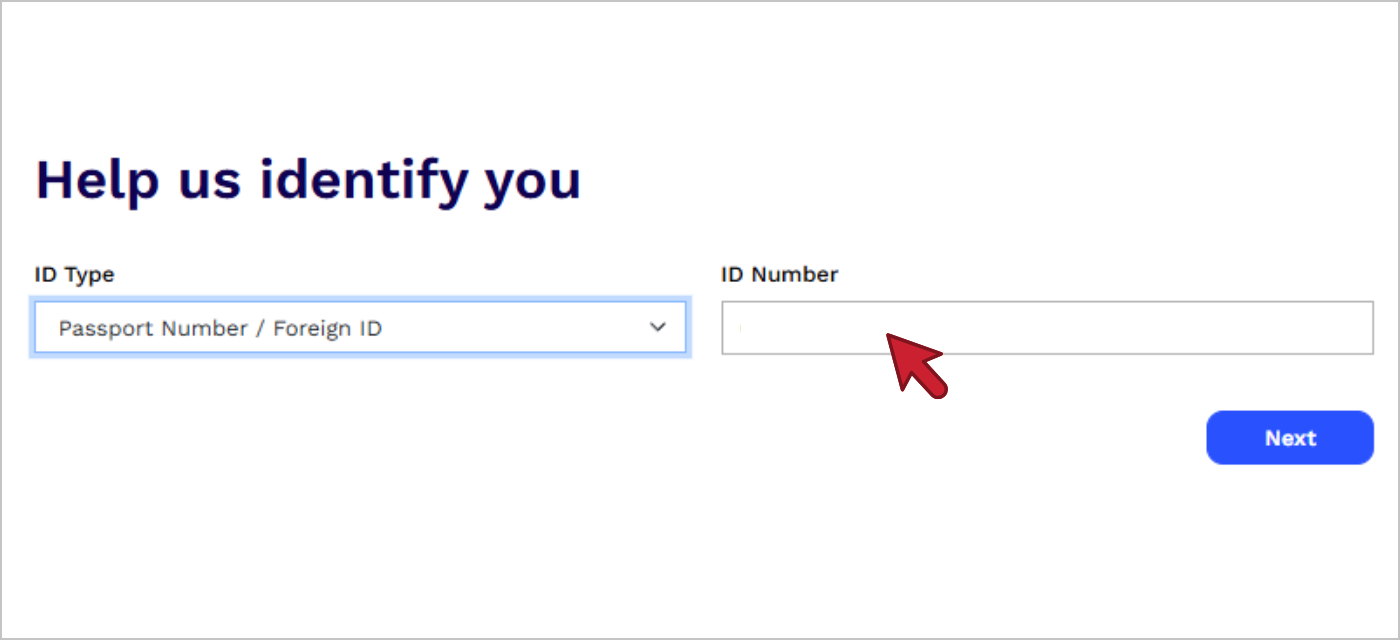
- Provide Your Details: You will be prompted to verify your identity by entering details from your official identification document, such as your Foreign Identification Number (FIN) or passport number.
- Retrieve Your Certificates: Once your identity is confirmed, you will be able to search for your completed courses and download your WSQ certificates.
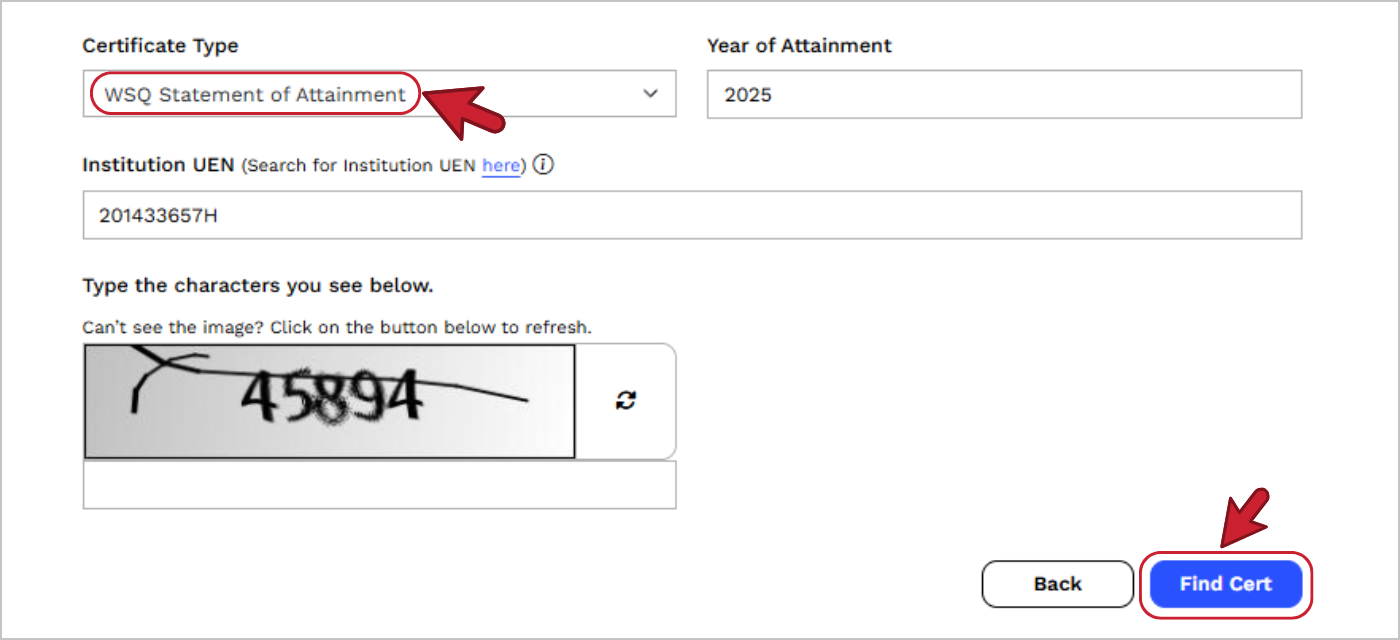
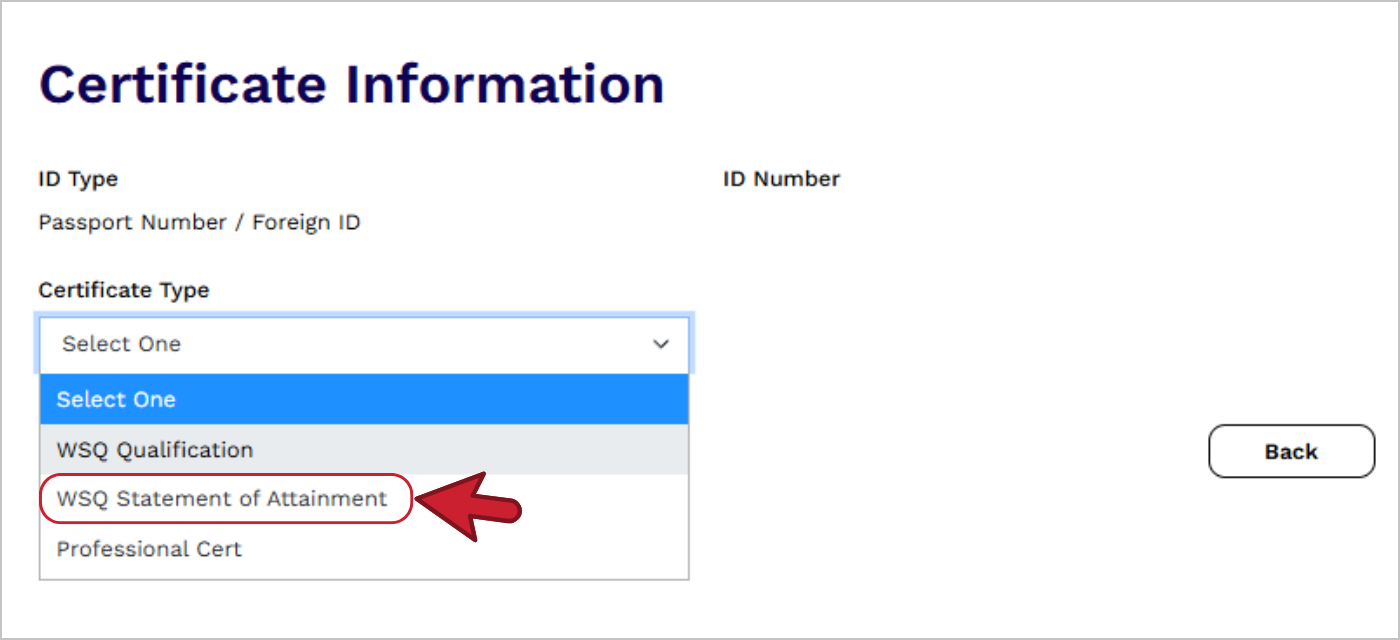
- Importantly, key in “WSQ Statement of Attainment“.
- Enter the Year of Attainment (the year you have completed your course) and the Institution UEN. If you have attended a course with us, key in “201433657H“.
Accessing your WSQ certificate is possible even if you do not have a valid Singpass.
For learners who have completed courses with Adept Academy and are still unable to download your certificate after following the official steps, our team is here to help. Please reach out to us for assistance by sending an email with your full name, NRIC/ FIN number and the course details to admin@adept.marketing-campaign.com.sg.
Please note that while we strive to provide prompt support for all inquiries, the retrieval of past certificates from the official records is a detailed process. Kindly allow 3 to 5 working days for our team to process your request and assist you with your certificate information.
Step 1:
Step 2:
Step 3: